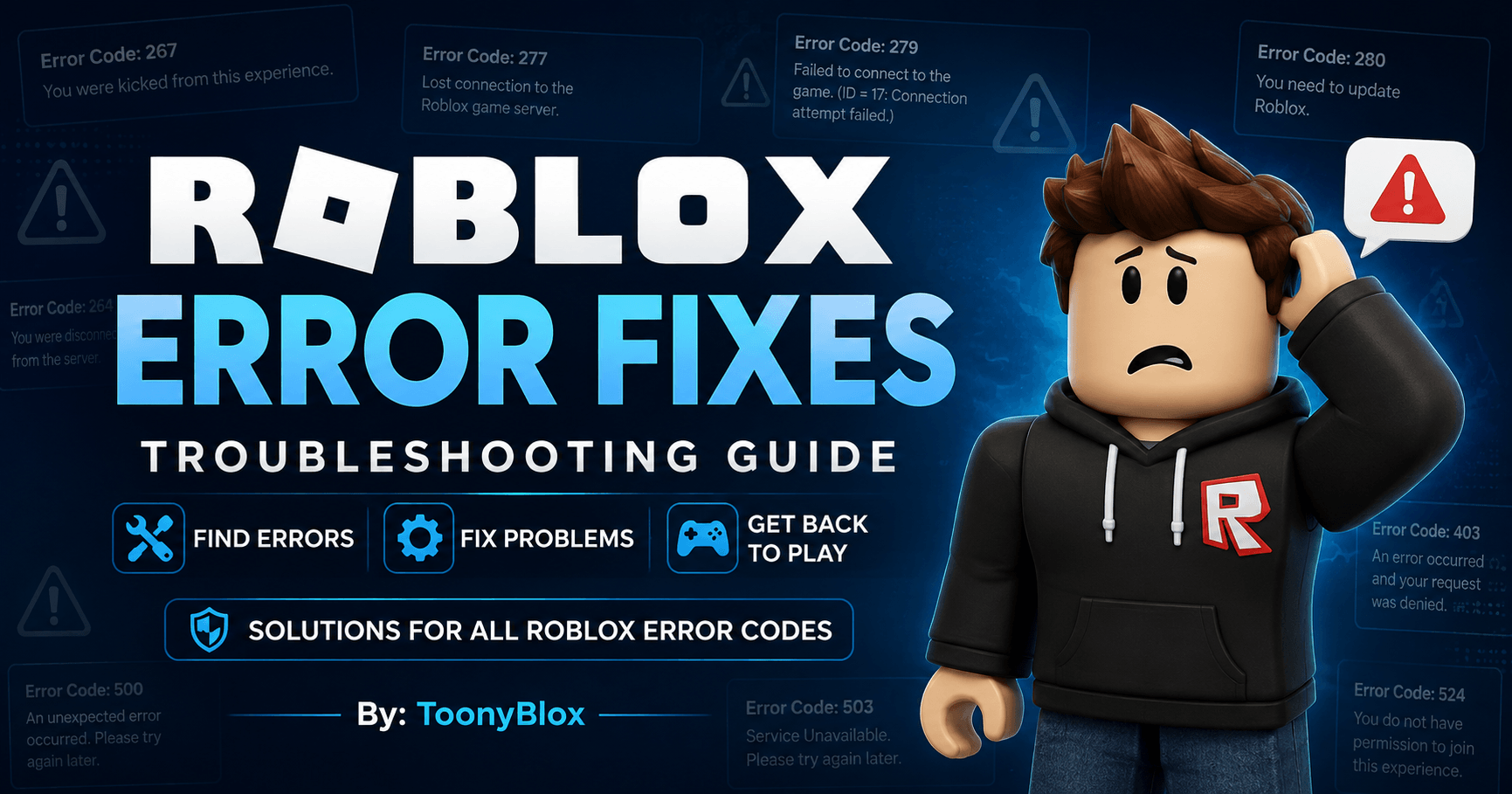
Roblox Error Fixes & Troubleshooting Guide
Having trouble playing Roblox? You’re in the right place. This Roblox Error Fixes Hub helps players identify common Roblox error codes, understand what they mean, and follow simple troubleshooting steps to get back into the game.
Whether Roblox is refusing to launch, disconnecting you from a game, showing an unexpected error, failing to connect to servers, or displaying a specific error code, use the guides below to find the most relevant solution.
Tip: Bookmark this page. Roblox errors can change over time, and a problem that appears today may be replaced by a different error later.
Roblox Error Codes: Find Your Problem
Looking for a specific error code? Start here.
| Error | What It Usually Means | Quick Help |
|---|---|---|
| Error 264 | Roblox detected another active session or a connection issue | Check active Roblox sessions and reconnect |
| Error 267 | You were kicked from a specific experience | Check the experience’s kick message |
| Error 268 | Roblox detected an unexpected client/server behavior | Restart Roblox and check your connection |
| Error 277 | Lost connection to the Roblox game server | Troubleshoot your internet connection |
| Error 279 | Roblox could not establish a connection to the game | Check your network, firewall, and Roblox connection |
| Error 280 | Roblox may need to be updated | Update Roblox and restart the app |
| Error 403 | Access or connection request was denied | Check your connection, account, and Roblox status |
| Error 404 | Requested Roblox content could not be found | Verify the experience or page still exists |
| Error 500 | Server-side or unexpected Roblox problem | Check Roblox service status and try again |
| Error 503 | Service may be temporarily unavailable | Wait and try again later |
| Error 524 | You could not join the requested experience/server | Check server access and privacy settings |
[View All Roblox Error Codes →]
Important: Error behavior can vary depending on the Roblox app, platform, experience, account settings, network, and current Roblox services. Treat the descriptions above as starting points rather than guaranteed causes.
Quick Roblox Error Fixes
If you don’t know which error you’re experiencing, try these basic solutions first.
1. Restart Roblox
Completely close Roblox and open it again.
On PC, make sure Roblox is no longer running in the background before launching it again.
2. Restart Your Device
A simple restart can clear temporary software, network, or memory problems.
Restart your:
- Windows PC
- Mac
- iPhone or iPad
- Android device
- Xbox
- PlayStation
Then try Roblox again.
3. Check Your Internet Connection
Roblox requires a stable connection to communicate with its servers.
Try:
- Restarting your router
- Switching between Wi-Fi and mobile data when available
- Moving closer to your router
- Disconnecting unnecessary devices
- Testing another online game or website
If other online services are also failing, the problem may not be Roblox itself.
4. Check Roblox Server Status
Sometimes Roblox is experiencing a platform-wide outage or service problem.
If many players are reporting problems at the same time, repeatedly reinstalling Roblox usually won’t solve a server-side outage.
5. Update Roblox
An outdated Roblox client can cause compatibility and connection problems.
Install the latest available Roblox update for your device, then restart the application.
6. Reinstall Roblox
If Roblox files have become corrupted or the application is behaving unexpectedly, uninstalling and reinstalling Roblox can help.
Before reinstalling, make sure you know your Roblox login information.
7. Check Firewall or Security Software
On computers, firewall or security software can sometimes interfere with Roblox’s connection.
If Roblox suddenly stopped connecting after changing security settings, check whether Roblox is allowed through your firewall.
Do not disable your security software permanently just to make Roblox work.
8. Try Another Roblox Experience
This is an important diagnostic step.
If only one experience refuses to load while other Roblox games work normally, the problem may be related to that particular experience rather than your Roblox installation.
Roblox Error Fixes by Problem
Not every Roblox problem displays an error number. Use the categories below if you know what is happening but don’t know the error code.
Roblox Won’t Launch
Try these solutions:
- Restart your device.
- Close Roblox completely.
- Update Roblox.
- Check your internet connection.
- Reinstall Roblox if the problem continues.
- Check whether Roblox services are experiencing an outage.
Related guide: Roblox Won’t Open or Launch — Complete Fix
Roblox Keeps Disconnecting
If Roblox repeatedly disconnects you:
- Test your internet connection.
- Restart your router.
- Try another network if possible.
- Restart Roblox.
- Check Roblox service status.
- Look for a specific error code in the disconnect message.
Related guides:
- Roblox Error 277 Fix
- Roblox Error 279 Fix
- Roblox Connection Problems
Roblox Is Lagging
Lag isn’t always caused by your internet.
Possible causes include:
- High network latency
- Weak Wi-Fi
- Too many background applications
- High graphics settings
- An older device
- A demanding Roblox experience
- Temporary server issues
Try lowering Roblox graphics quality and closing unnecessary applications.
Related guide: How to Fix Roblox Lag and High Ping
Roblox Says “Failed to Connect”
Start with the basics:
- Restart Roblox.
- Restart your router.
- Test another website or online game.
- Try another network.
- Check Roblox’s service status.
- Look for an error number in the message.
If you see an error code, search this page for the exact number.
Roblox Keeps Crashing
If Roblox closes unexpectedly:
- Restart your device.
- Update Roblox.
- Close unnecessary applications.
- Check available storage.
- Lower graphics settings.
- Reinstall Roblox.
- Make sure your device meets Roblox’s current requirements.
If the crash happens only in one experience, the experience itself may be contributing to the problem.
Roblox Is Stuck Loading
If Roblox stays on the loading screen:
- Check your internet connection.
- Restart Roblox.
- Try another experience.
- Restart your device.
- Update Roblox.
- Check Roblox service status.
- Reinstall Roblox if necessary.
If every Roblox experience is affected, investigate your connection or Roblox’s services first.
Roblox Error Fixes by Device
The best troubleshooting method can depend on the device you’re using.
Windows PC
Common fixes include:
- Restarting Roblox
- Updating Roblox
- Checking Windows updates
- Checking firewall permissions
- Reinstalling Roblox
- Testing your internet connection
- Closing unnecessary background applications
[See Roblox PC Error Fixes →]
Mac
Try:
- Restarting Roblox
- Updating macOS and Roblox
- Checking your network
- Reinstalling Roblox
- Checking available storage
- Testing another Roblox experience
[See Roblox Mac Error Fixes →]
iPhone and iPad
Try:
- Closing and reopening Roblox
- Restarting the device
- Updating Roblox through the App Store
- Checking available storage
- Reinstalling Roblox
- Testing another network
[See Roblox iPhone & iPad Fixes →]
Android
Try:
- Restarting Roblox
- Updating Roblox
- Restarting your device
- Checking storage
- Clearing Roblox’s app cache when appropriate
- Reinstalling Roblox
[See Roblox Android Error Fixes →]
Xbox
Check:
- Roblox updates
- Your Xbox network connection
- Xbox service status
- Available storage
- Roblox server status
Restart Roblox and your console before trying more advanced troubleshooting.
[See Roblox Xbox Error Fixes →]
PlayStation
Try:
- Restarting Roblox
- Checking your internet connection
- Updating Roblox
- Restarting your console
- Checking PlayStation network services
- Reinstalling Roblox if necessary
[See Roblox PlayStation Error Fixes →]
When Roblox Is Down
Before spending time changing settings or reinstalling the application, check whether Roblox itself is experiencing a service disruption.
Signs that Roblox may be having a wider problem include:
- Multiple Roblox experiences won’t load.
- You cannot log in.
- Friends are also experiencing the same problem.
- Several Roblox features stop working simultaneously.
- Many players report the same issue.
If the problem is caused by Roblox’s servers, there may be nothing to repair on your device. Waiting for the service to recover may be the correct solution.
How to Find Your Roblox Error Code
If Roblox displays an error message, look carefully for a number.
For example:
“Disconnected — You were kicked from this experience: Error Code: 267.”
The number is useful because it gives you a starting point for troubleshooting.
When searching ToonyBlox, use the exact number:
Roblox Error 267 → Error 267 Fix
Roblox Error 277 → Error 277 Fix
Roblox Error 279 → Error 279 Fix
This is usually more useful than searching for a generic “Roblox not working” solution.
Before You Try Advanced Fixes
Avoid immediately changing complicated Windows settings, installing unofficial software, or downloading random “Roblox repair” programs.
Most common Roblox problems can first be investigated with:
- Roblox status
- Internet connection
- Roblox updates
- Device restart
- Application restart
- Firewall/security settings
- Reinstallation
Only move to more advanced troubleshooting when simpler solutions don’t work.
Never give your Roblox password, verification codes, cookies, or account session information to someone claiming they can fix your error.
Roblox Error Troubleshooting Checklist
When Roblox isn’t working, go through this quick checklist:
- Identify the exact error message.
- Look for an error code.
- Check Roblox service status.
- Restart Roblox.
- Restart your device.
- Test your internet connection.
- Try another Roblox experience.
- Update Roblox.
- Check firewall/security settings on PC.
- Reinstall Roblox if necessary.
- Search ToonyBlox for the exact error code.
Frequently Asked Questions
Why is Roblox showing an error?
Roblox errors can be caused by connection problems, server issues, outdated software, account or experience restrictions, corrupted application data, device problems, or temporary service disruptions.
The exact cause depends on the error code and circumstances.
What should I do first when Roblox isn’t working?
First, identify the error message and check whether Roblox services are working normally. Then restart Roblox and your device and test your internet connection.
Why does Roblox keep disconnecting me?
Repeated disconnections can be caused by an unstable connection, server problems, network restrictions, or a Roblox client issue. Look for an error code because it can narrow down the problem.
Should I reinstall Roblox when I get an error?
Not always. Reinstallation is better treated as a later troubleshooting step after checking your connection, Roblox status, updates, and basic application problems.
Why does Roblox work in one game but not another?
If other experiences work normally, the issue may be specific to the experience you’re trying to join. The experience could be unavailable, restricted, experiencing server problems, or having its own technical issue.
Can Roblox errors fix themselves?
Yes. Some errors are caused by temporary server or service problems and may disappear once Roblox restores the affected service.
Are Roblox error codes the same on every device?
Not necessarily. The available error messages and troubleshooting steps can differ between PC, mobile, Xbox, PlayStation, and other supported platforms.
Why does restarting Roblox sometimes fix an error?
Restarting can clear temporary application problems and establish a fresh connection with Roblox services.
Is every Roblox error caused by my internet?
No. Roblox errors can also originate from Roblox services, the Roblox application, your device, account restrictions, or an individual experience.
What if none of the fixes work?
Record the exact error message, error code, device you’re using, and what you’ve already tried. Then check Roblox’s official support resources or the specific ToonyBlox guide for that error.
Roblox Error Codes We Cover
Current and planned troubleshooting categories include:
- Roblox Error 264
- Roblox Error 267
- Roblox Error 268
- Roblox Error 277
- Roblox Error 279
- Roblox Error 280
- Roblox Error 403
- Roblox Error 404
- Roblox Error 500
- Roblox Error 503
- Roblox Error 524
- Roblox connection errors
- Roblox login problems
- Roblox launch problems
- Roblox crashing
- Roblox lag and high ping
- Roblox update problems
- Roblox loading problems
- Roblox voice chat problems
- Roblox account and access problems
[Browse All Roblox Error Codes →]
Bookmark ToonyBlox for Future Roblox Problems
Roblox problems don’t always come with an obvious solution.
That’s why this page is designed as a growing troubleshooting hub rather than a single list of error codes.
If you encounter another Roblox error in the future, come back to ToonyBlox and search for the exact error number or problem you’re experiencing.
Bookmark this page so you have a Roblox troubleshooting guide ready when you need it.
Editorial & Trust Information
Last reviewed: August 26, 2026
Roblox error behavior, platform features, and troubleshooting procedures can change over time. ToonyBlox should review individual error guides whenever Roblox releases significant client, platform, or service changes.
For account-specific problems, security issues, or problems that cannot be resolved through standard troubleshooting, players should also consult Roblox’s official support resources.
Related ToonyBlox Resources:
- Roblox Beginner’s Hub
- Roblox Game Codes
- Roblox Tools
- Roblox Acronyms Dictionary
- Roblox Game Guides
- Roblox Tips & Tricks