How to Download and Install Roblox on Any Device (2026)
How to Download and Install Roblox on PC, Mac, Android, and iPhone
Roblox is available on computers, smartphones, and tablets, allowing players to explore millions of user-created games and experiences. Installing Roblox is straightforward, but the steps vary by device.
So, in this guide, we will teach you how to download the Roblox game safely, install the app, check basic system requirements, and fix common installation problems.
How to Download Roblox
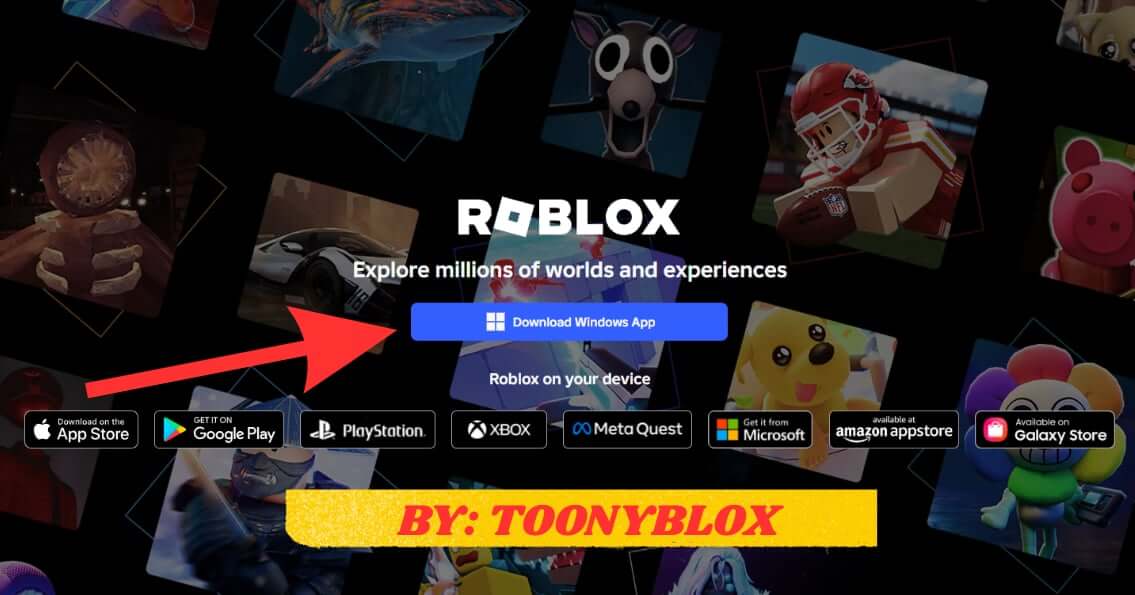
The safest way to download Roblox is through its official website or your device’s official app store. Avoid unofficial download sites, modified installers, and third-party apps claiming to provide free Robux.
Choose the installation method that matches your device:
- Windows PC: Use the official Roblox website or Microsoft Store.
- Mac: Visit the official Roblox website and follow the installation instructions.
- Android: Download Roblox through Google Play.
- iPhone or iPad: Download Roblox through the Apple App Store.
- Chromebook: Use Google Play if your Chromebook supports Android apps and meets Roblox’s requirements.
Official download links:
How to Install Roblox on a Windows PC
Follow these steps to install Roblox on your Windows computer.
- Open the official Roblox website.
- Sign in to your Roblox account or create one if you are new.
- Open the page of any Roblox experience you want to play.
- Click the Play button and follow the installation instructions. Alternatively, check the Microsoft Store for the current official Windows app.
- If you downloaded the installer from the website, open the downloaded file and allow it to complete the installation.
- Return to the Roblox experience and click Play again to launch the game.
If you install Roblox through the Microsoft Store, open the app after installation and sign in with your Roblox account.
Important: Roblox has introduced a newer Windows app called Roblox – Windows in the Microsoft Store. Follow Roblox’s current instructions if you are upgrading from an older installation.
How to Install Roblox on a Mac
Mac users can install Roblox by launching an experience from the official Roblox website.
- Open Roblox.com in a supported browser.
- Sign in to your account.
- Choose an experience and click Play.
- Follow the prompts to download and install Roblox Player.
- Open the downloaded installer and complete the setup.
- Return to your browser and click Play to launch the experience.
If your browser asks permission to open Roblox, approve the request only when it comes from the official Roblox installation.
How to Install Roblox on Android
You can install Roblox on a compatible Android phone or tablet through Google Play.
- Open the Google Play Store.
- Search for Roblox.
- Check that the developer is Roblox Corporation.
- Tap Install and wait for the download to finish.
- Open Roblox and sign in or create an account.
- Choose an experience and tap to play.
If Roblox does not appear as installable, check your device compatibility, Android version, available storage, and Google Play settings.
How to Install Roblox on iPhone or iPad
To install Roblox on an Apple mobile device:
- Open the Apple App Store.
- Search for Roblox.
- Verify that the app is published by Roblox Corporation.
- Tap Get and authenticate if prompted.
- Wait for the app to install, then open it.
- Sign in to your account or create a new one.
- Select an experience to start playing.
Keep your device’s operating system updated if you encounter compatibility issues.
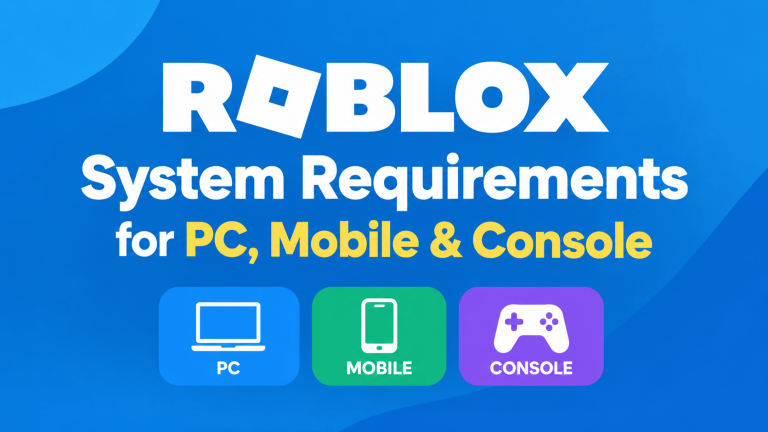
What Are the System Requirements for Roblox?
Before downloading Roblox, make sure your device meets the game’s current requirements. An app may install successfully but still perform poorly if the device lacks sufficient resources.
| Device | Basic compatibility information |
|---|---|
| Windows PC | 64-bit Windows 10 or Windows 11 |
| Mac | macOS 10.13 or later, according to Roblox’s published computer requirements |
| Android | A compatible Android device and supported operating system |
| iPhone or iPad | A compatible Apple device and supported iOS or iPadOS version |
| Chromebook | Supported ChromeOS device with Google Play enabled |
These are starting points, not a guarantee that every Roblox experience will run smoothly. Hardware needs can vary by experience, and Roblox may update its requirements.
For the latest details, check the official Roblox computer system requirements and Roblox’s mobile support documentation.
How to Fix Common Roblox Installation Problems
If Roblox fails to download, install, or launch, try these basic troubleshooting steps.
1. Check your internet connection. A weak or interrupted connection can prevent the installer or app from downloading properly.
2. Free up storage space. Remove unnecessary files or apps if your device does not have enough available storage.
3. Update your device. Install available operating system updates and check whether your device meets Roblox’s current requirements.
4. Restart your device. A restart can resolve temporary problems that interfere with installation or launching.
5. Reinstall Roblox if necessary. If the installation is damaged, uninstall the app, restart your device, and install it again from an official source. Make sure you can access your account before uninstalling.
6. Check for app or service issues. If Roblox still will not open, consult Roblox Support for device-specific instructions and error messages.
Avoid disabling your security software or downloading unofficial fixes just to get Roblox running.
Is Roblox Free to Download?
Yes. Roblox is free to download and play on supported devices. However, some experiences offer optional purchases, and Robux—the platform’s virtual currency—can be purchased with real money.
You do not need to pay for a third-party installer to download the official Roblox app. Be cautious of websites that promise free Robux in exchange for your password, personal information, or downloads.
Do You Need Roblox Studio to Play Roblox?
No. Roblox Player is used to play experiences, while Roblox Studio is used to create them.
If your goal is simply to play Roblox games, install the regular Roblox app or player for your device. If you want to build and publish your own experiences, visit the official Roblox Studio installation guide.
Explore More Guides on ToonyBlox
Final Thoughts
Downloading and installing Roblox is simple when you use the correct method for your device. Get the app from Roblox’s official website or your device’s trusted app store, check compatibility requirements, and follow the installation prompts.
Once Roblox is installed, sign in to your account, choose an experience, and start playing. If something goes wrong, use official Roblox Support resources rather than unverified installers or unofficial fixes.
About the Author
Tony Brooks
Administrator
Hi! I'm Tony Brooks, a passionate video game player who has loved exploring, expanding, and sharing my gaming knowledge with everyone for the past decade. At first, playing Roblox games was just a pastime hobby for me until I realized how many wonderful ideas this platform has to offer. That's why I created this website to help other players win and bring their normal hobby or gameplay to the next level. Join me as TOONYBLOX, and together we will explore the hidden gems and precious moments as we dive into the world of Roblox for the next chapters of our gaming lives.
1 thought on “How to Download and Install Roblox on Any Device (2026)”